I’m building a new DIY router to improving my home network control. Problem with currents router, with slow connection to web interface and limited available features. while cleaning up in my storage shelf, I found a CWWk N100 motherboard, with small factory motherboard gave me idea to use it as router board by installing OpenWrt on it. OpenWrt is Linux bases OS and with Linux great support for many kinds of wireless cards unlike FreeBDS based OS for example OPNsense or pfSense.
Downloading OpenWrt
We going to install the OS by going to their office site, We will be using the x86-64 architecture, which is compatible with most desktop CPUs. You can download the firmware from the OpenWrt website and download the generic-ext4-combined-efi.img.gz file. After downloading you need to unzip the file.
Flashing OpenWrt
And we need have balenaetcher downloaded to flash OpenWrt to a USB flash drive.
After downloading and launching select Flash from file button. navigate towards where you saved the OpenWrt ISO file.
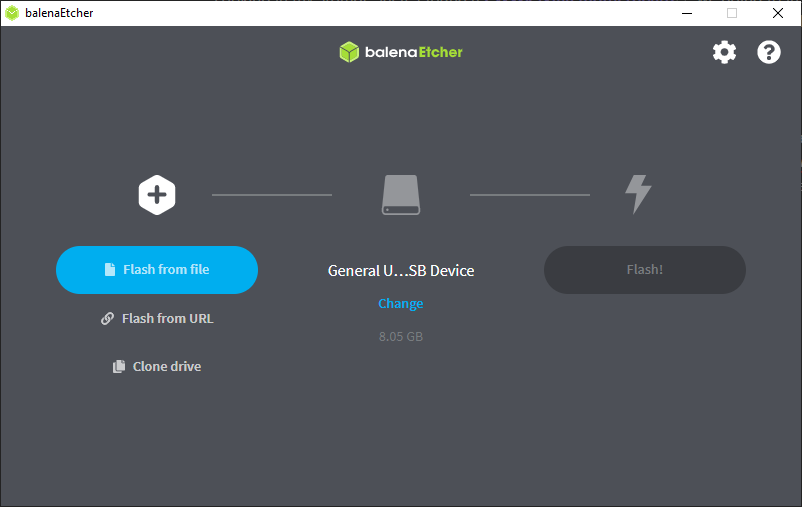
After finding the image it’s automatically sets a USB to be flashed
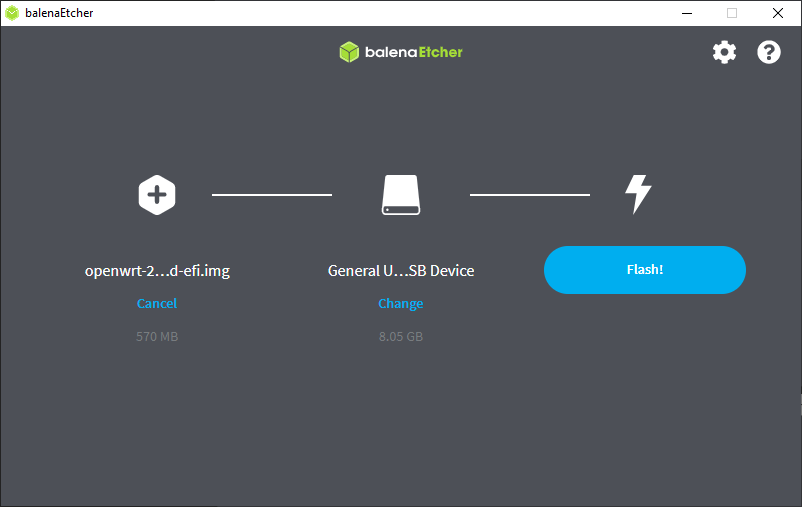
Then click on the Flash button
![[Completed-Flashing-USB.png]]
After flashing it to the USB. You need to insert the flashed USB to the motherboard
Entering the web-page OpenWrt
Go to 192.168.1.1 on your web browser.
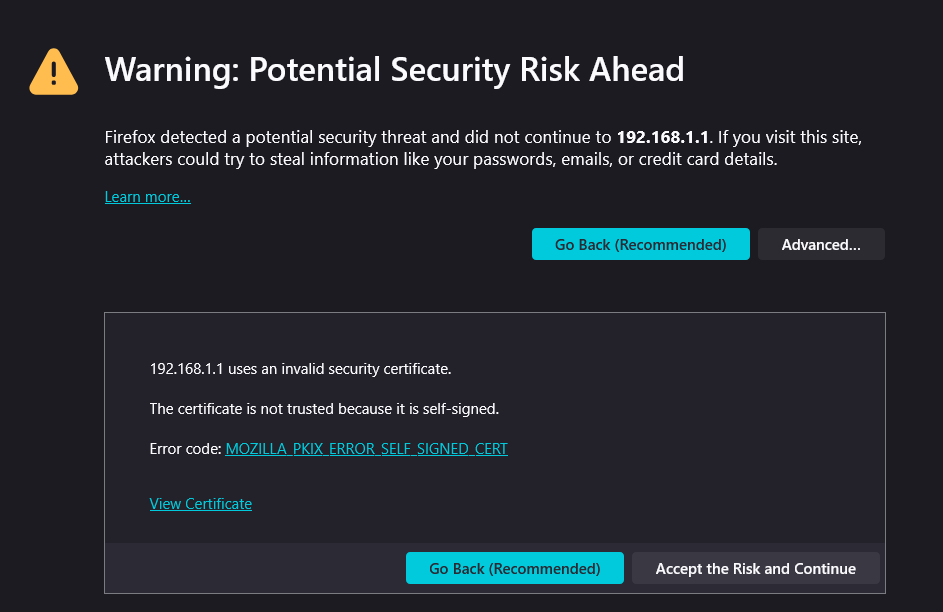
Wait up a bit then click on Accept the Risk and Continue.
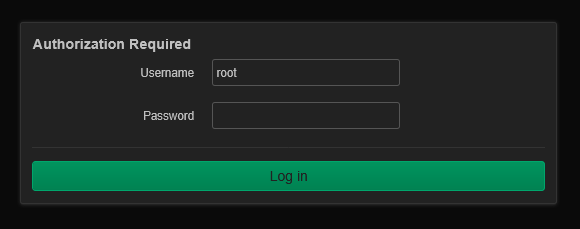
Then click on Log in button
On here we are in.
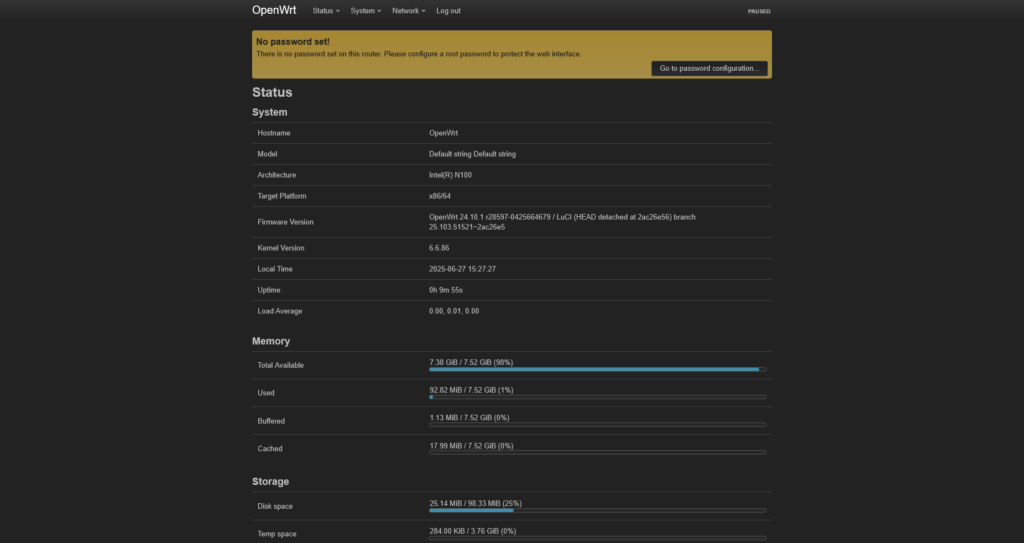
optionally, we could can remotely connecting to openwrt.
ssh root@192.168.1.1
And typing yes and then pressing enter key:
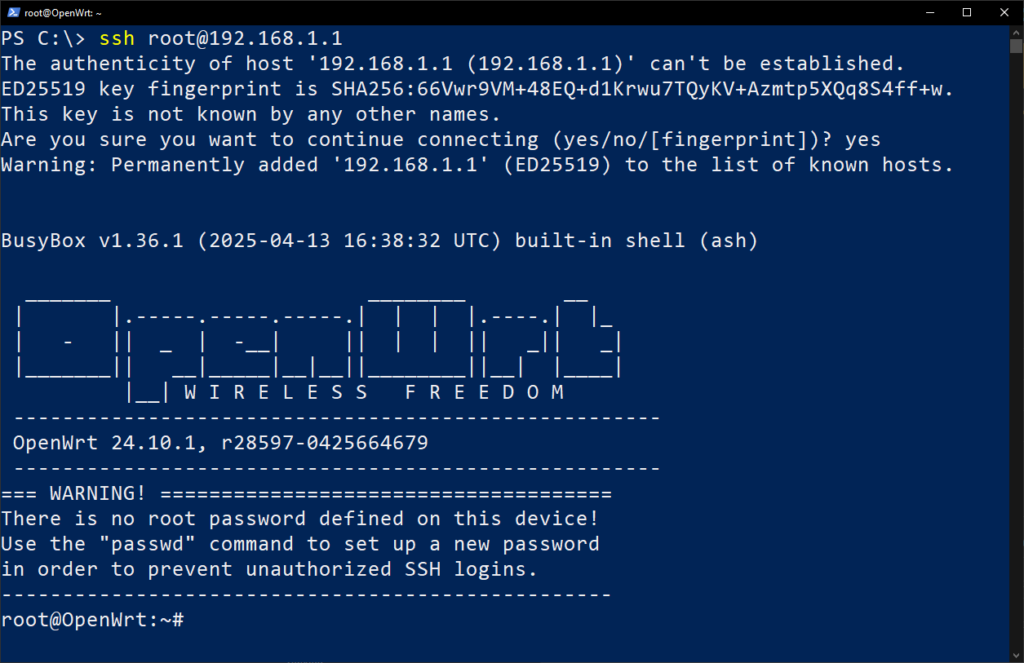
Additional and securities tweaks
Here we going enable network functionality and necessary security protections.
Add root password for your new router, by going to System>Administration:
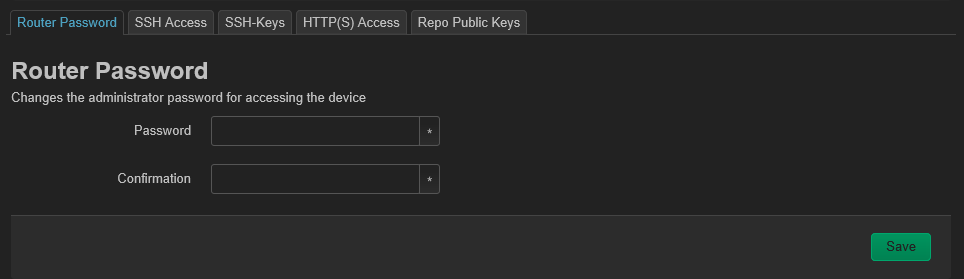
After setting a password then click on Save.
the go to HTTP(S) Access tab, make sure it’s checked on Redirect to HTTPS then save and apply. And refresh the webpage:
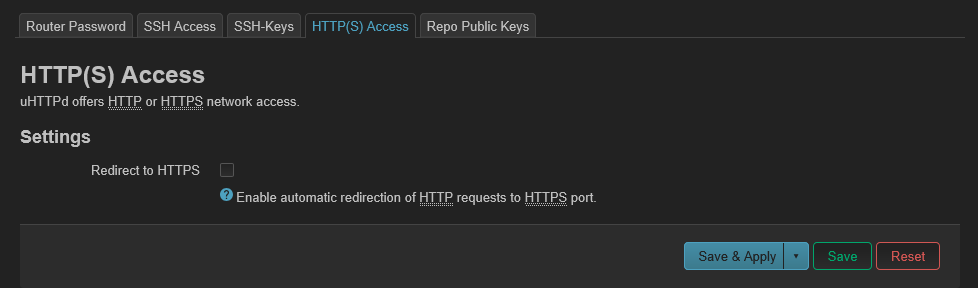
By enable redirecting HTTP to HTTPS ensures a secure connection by encrypting data, protecting it from interception.
Right now, we kind of have internet access but not completely:
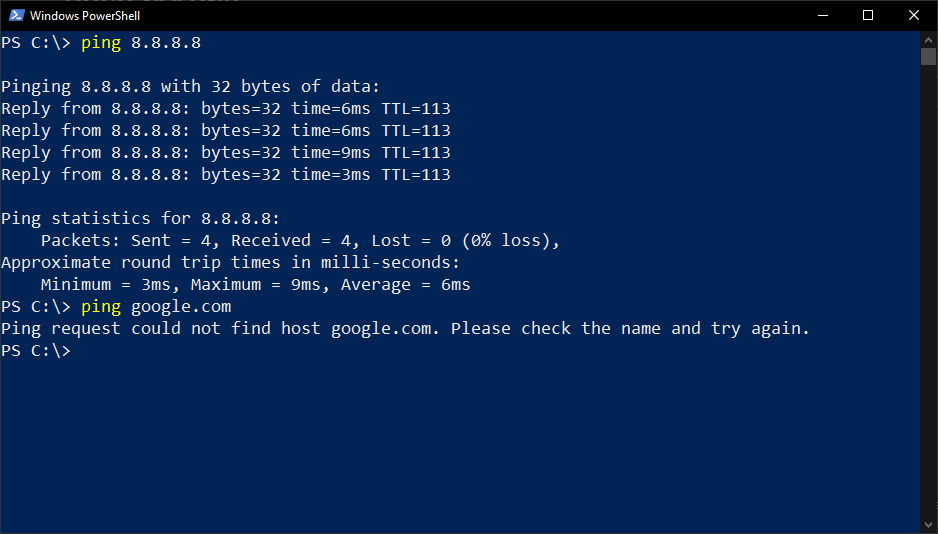
We tested that we could ping to google public DNS server, but if we try reaching by using domain name, it’s couldn’t find the google.com, for that need we to change setting to forward domain names to undetectable computer address.
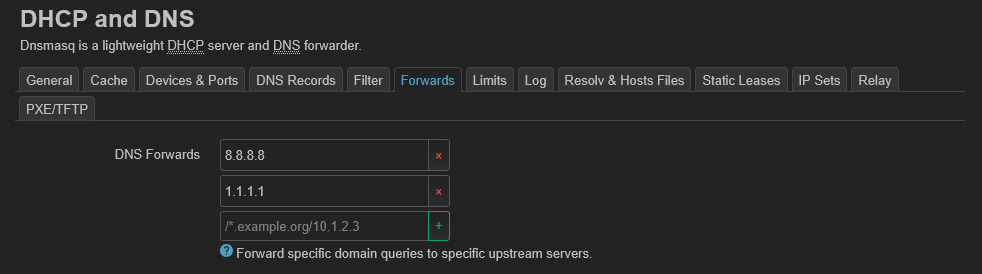
By going to Network>DHCP and DNS and going Forwards tab:
![[DNS-forward-default-setting-V2.png]]
Adding DNS server on DNS Forwards by adding 8.8.8.8 from google, 1.1.1.1 from cloudflare, public DNS servers:
After adding these DNS servers, now we can commutate with wider world:
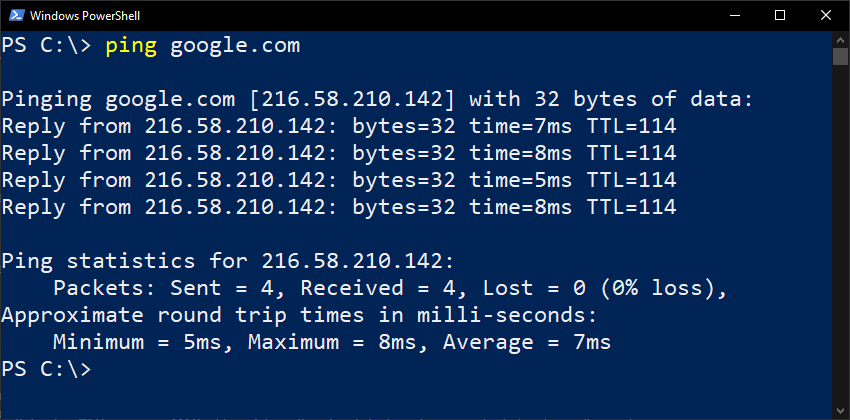
Now we have full access to the world wide internet
Well this part is more optional settings to change,
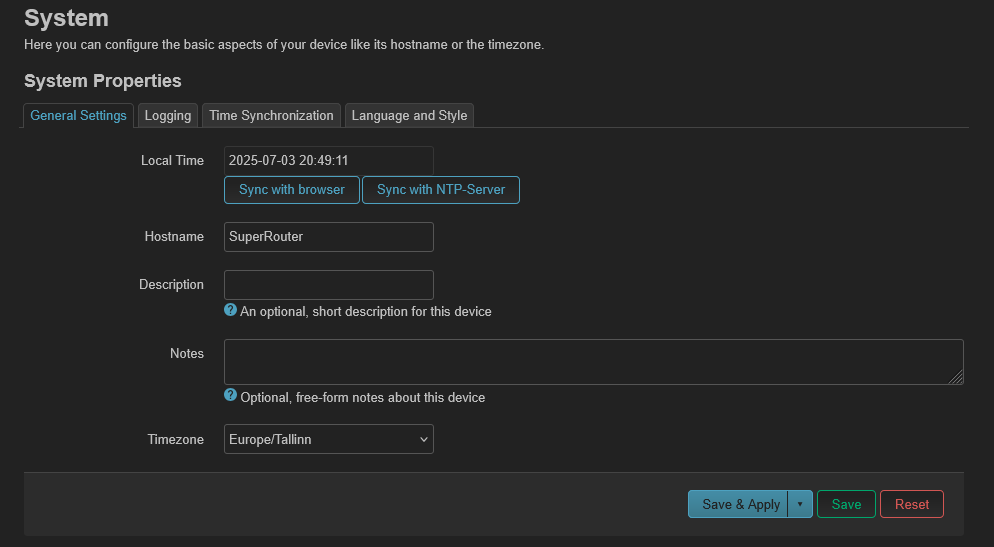
Go the System>System
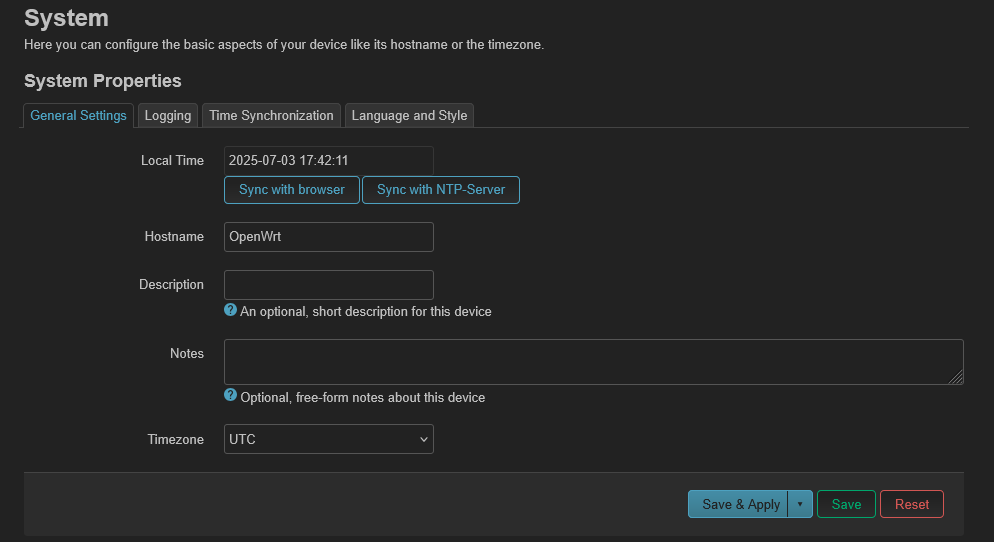
Optional changes:
- Change Timezone to your local time zone.
- Changing Hostname to something else.

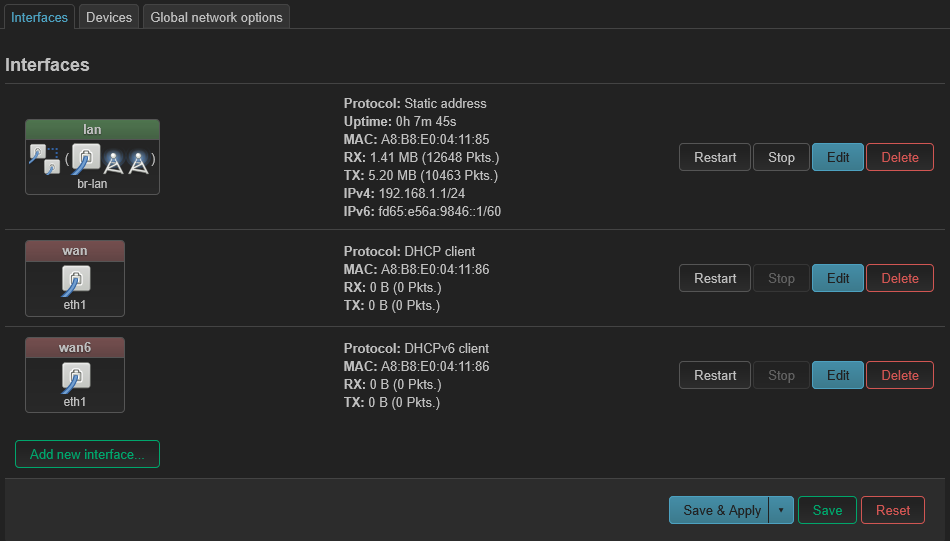
By going to Network>Interface
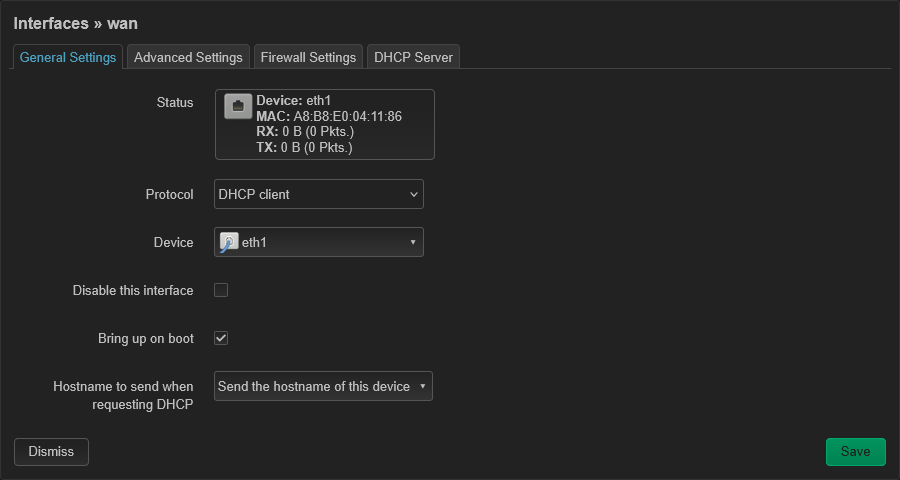
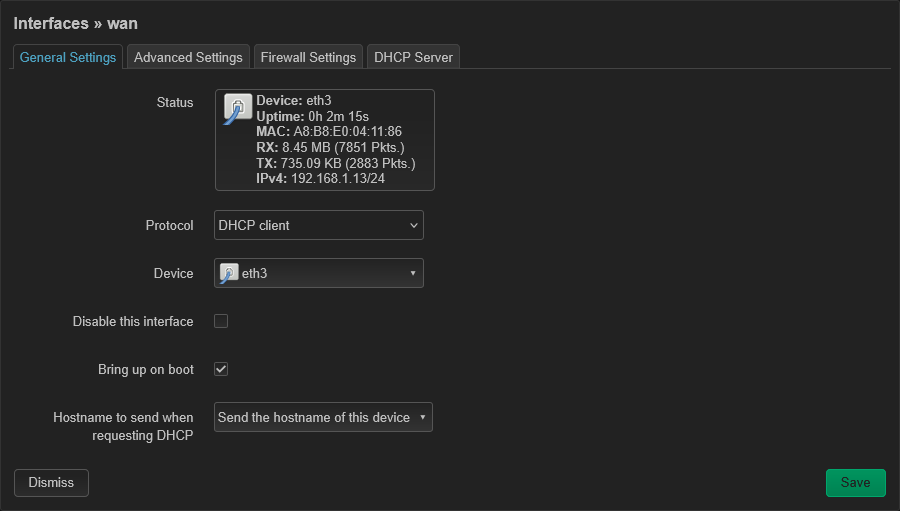
And we’re going to edit wan and wan6 connections information
![[Pasted image 20250716020721.png]]
Now Save & Apply settings
SSH:
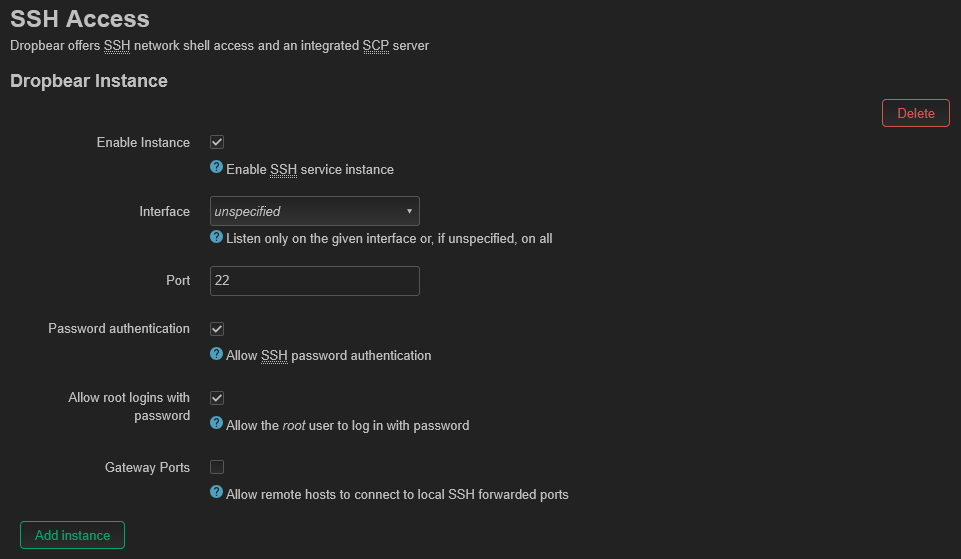
To
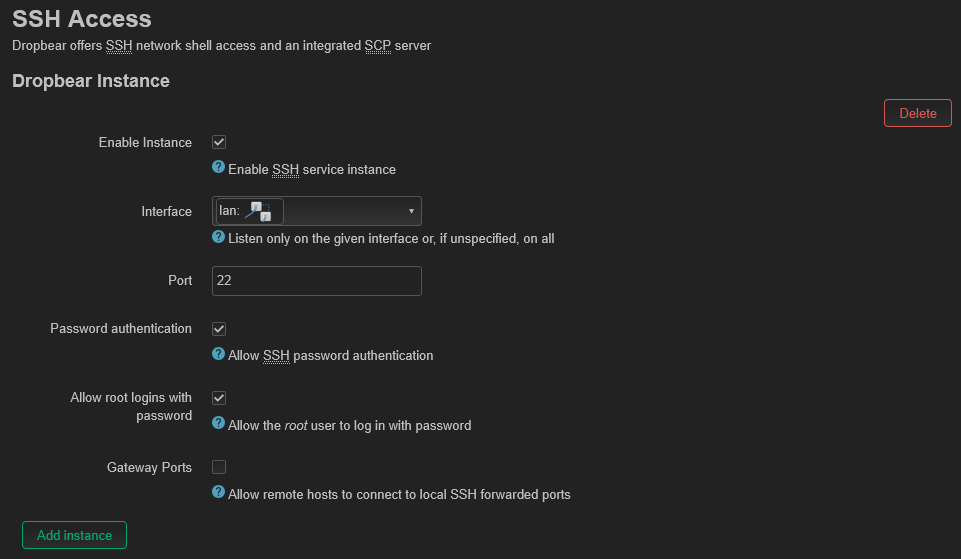
Updating and installing drivers and enabling wireless via webpage
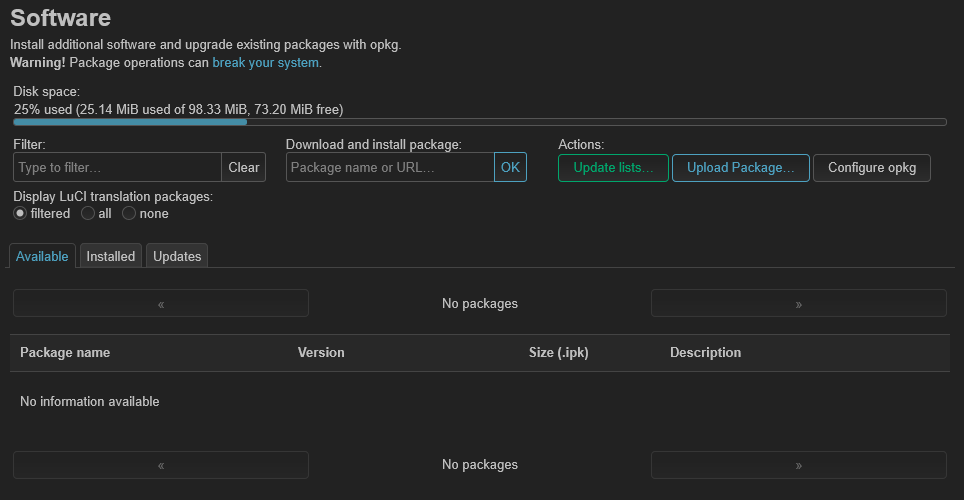
Clicking update lists… it’s fetching all list of software some world wide databases lists
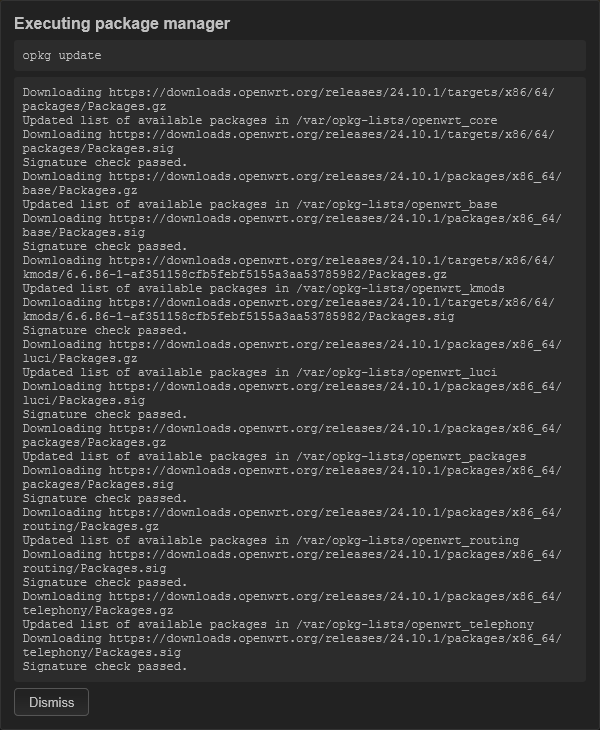
This windows will open up. In the first box going show you a terminal command getting an updated list of packages and in the second box the output of the command.
Then dismissing the window go to Update tab. there is no single update button to update all packages
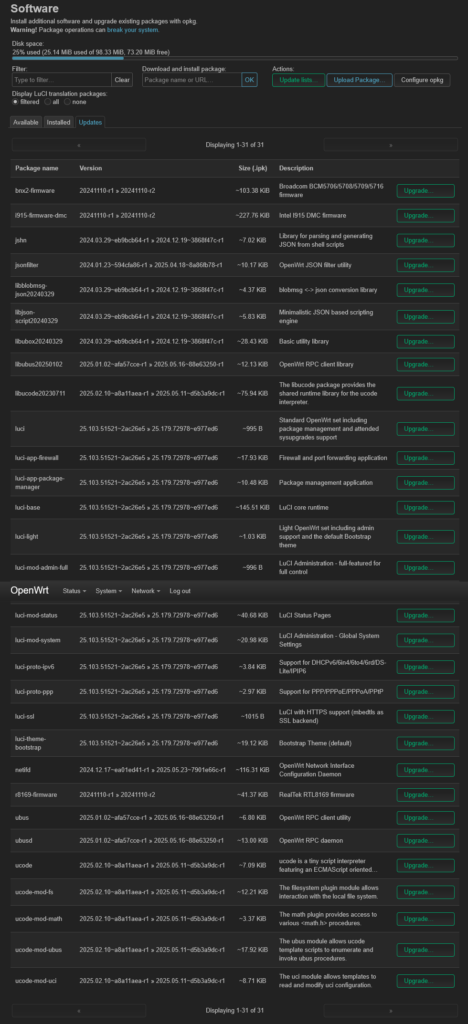
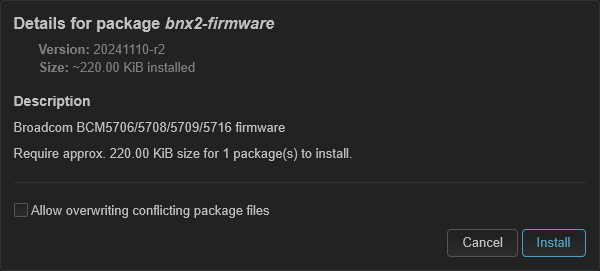
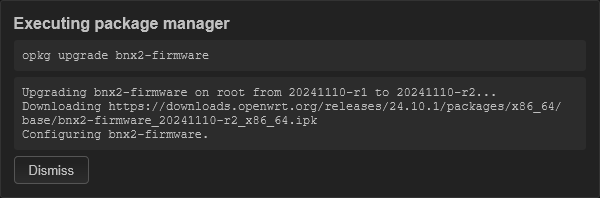
And we’re going to install some needed packages to have Wi-Fi functionality
Here’s names of needed packages to install.
kmod-mt7922-firmwarekmod-mt7925-firmwarekmod-mt7921ekmod-mt7925ehostapd- Pick the first package in the list
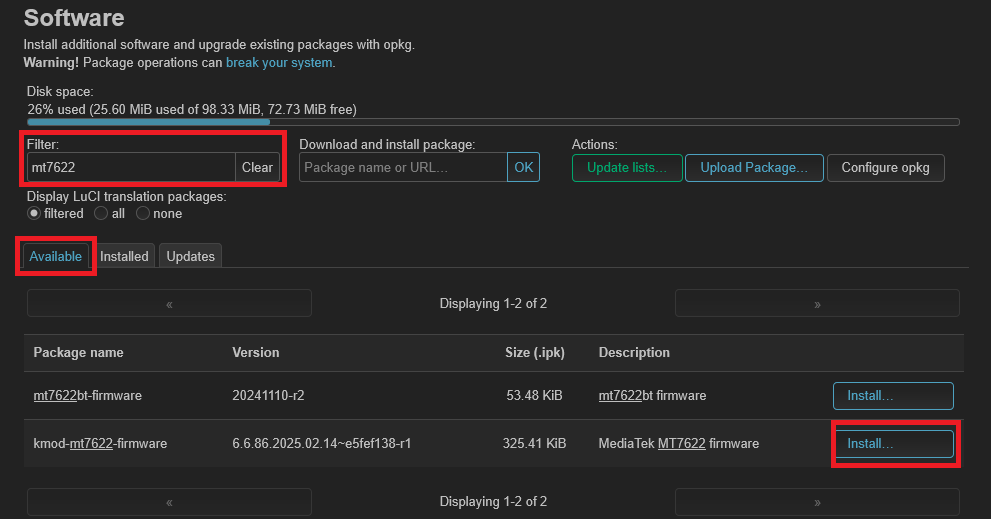
If a package is missing it’s going to install it before installing main package and click on Install button.
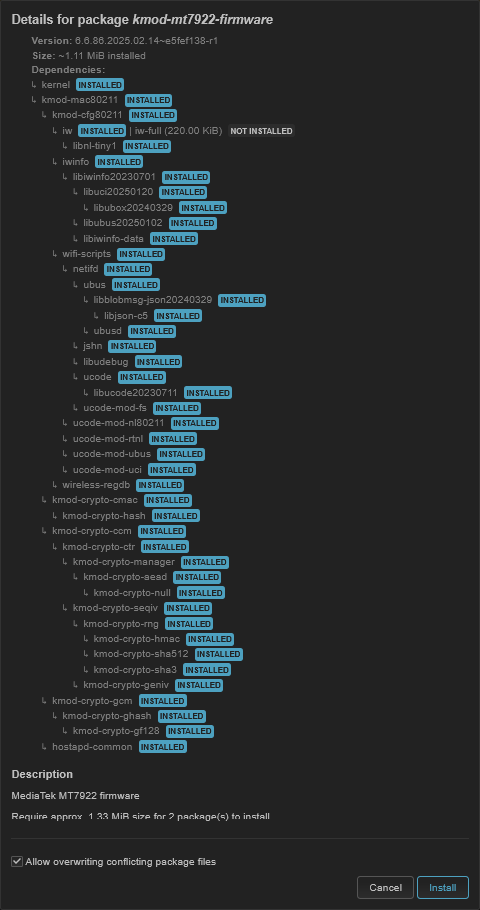
Then reboot the router.
Updating and installing drivers and enabling wireless via cli
We need to have the most updated packages to ensure both security and full functionality of the system.
And updating all package’s via this command:
- It’s going update your existing list of packages with command
opkg update - Sometimes it’s shutdown, in the middle, you should re-do this command to finish the rest of the packages
opkg update && opkg list-upgradable | cut -f 1 -d ' ' | xargs -r opkg upgradeInstalling needed drivers for wireless cards:
opkg --force-overwrite install kmod-mt7922-firmware kmod-mt7921e hostapdThen reboot.
rebootConfiguring Wi-fi
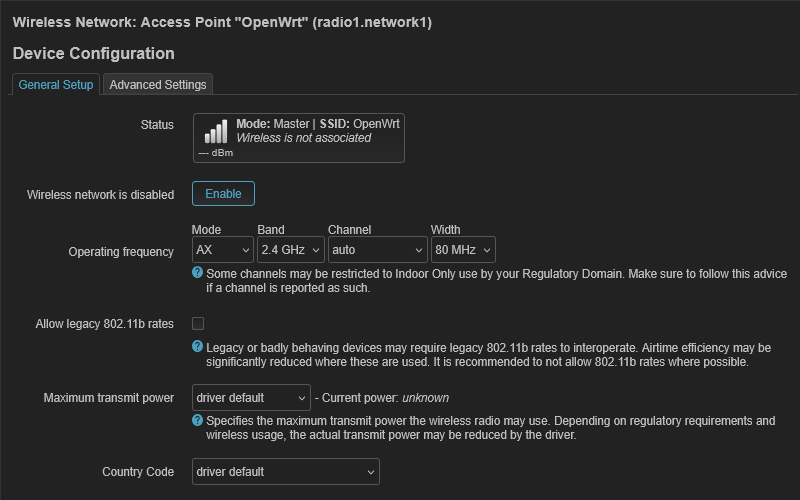
Now we going to configuring Wi-fi by go to Network>Wireless:
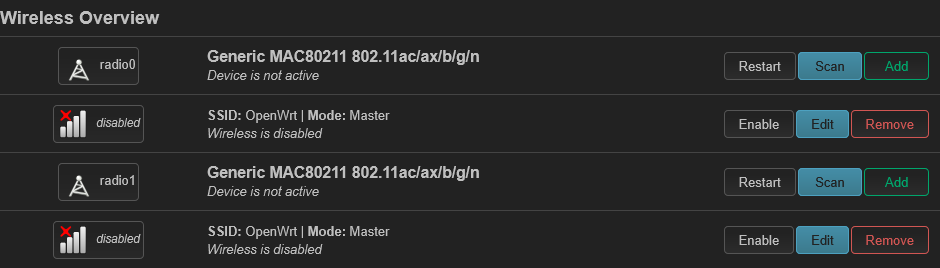
and clicking on first Edit button
First Card:
Go Band option select 5G
And change ESSID name with a fun name.
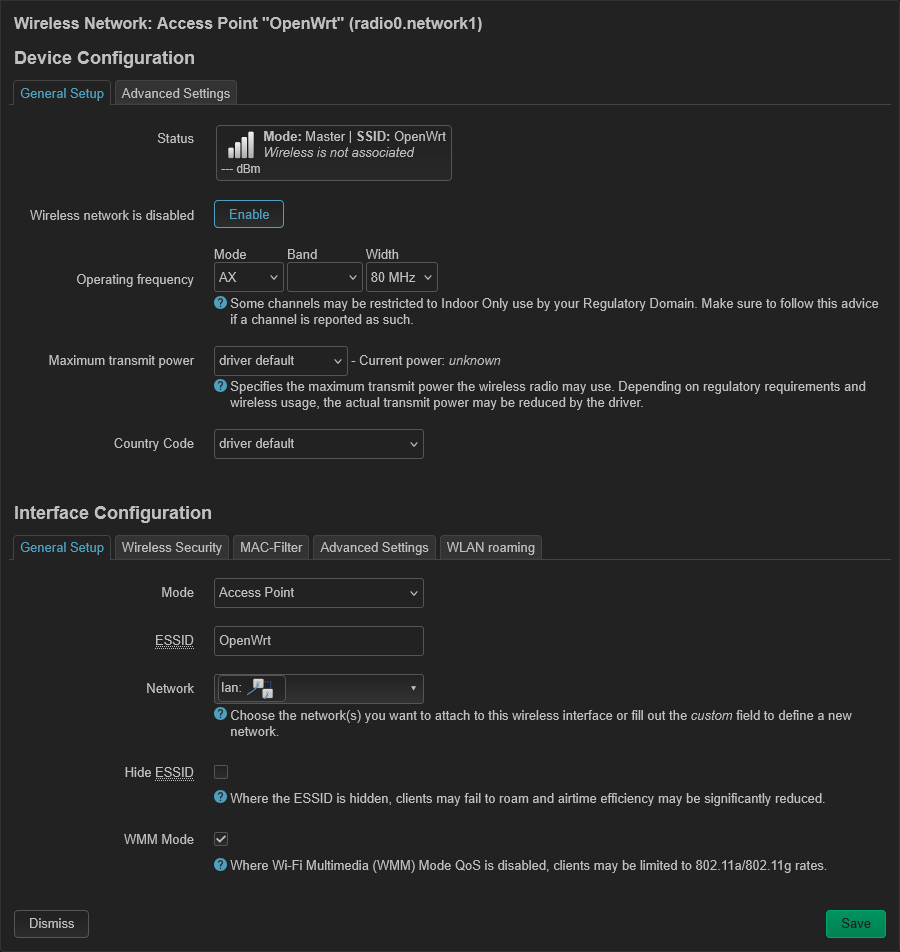

to
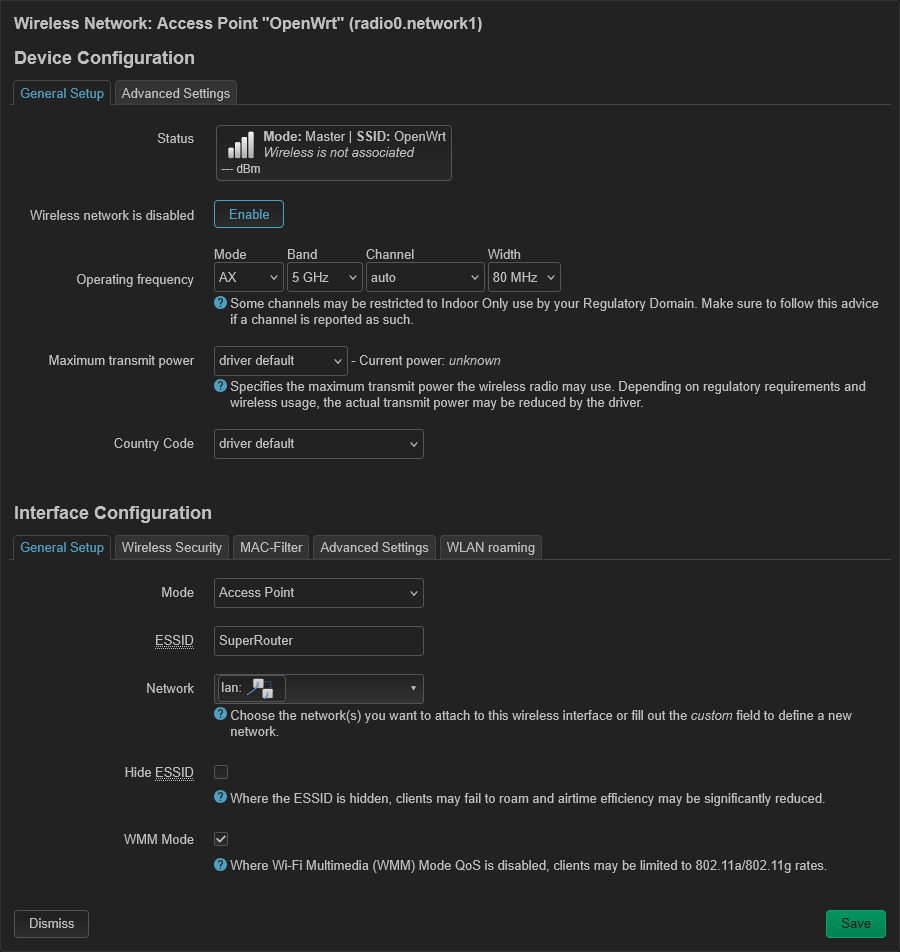

Click on Wireless Security tab:
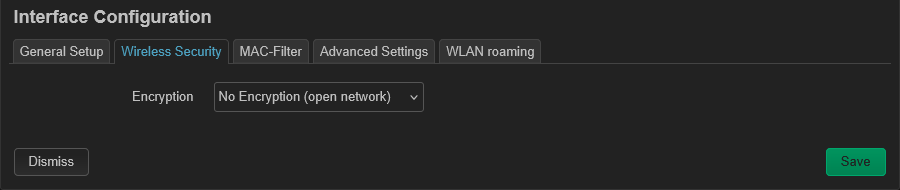
Then in Encryption select WPA2-PSK to encrypted connection and setting password, so no can easily view our internet activities:
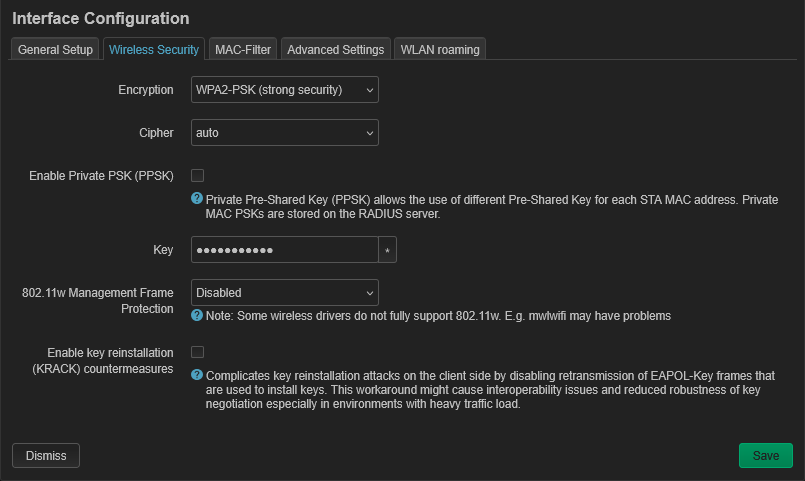
- On the key section it should at minimal 8 characters, I would recommends up to 16 characters, with number and special characters
- For those people says it’s hard to remember or write out, there is QR codes. Android has agility to generate Wi-Fi QR code for iPhone there going be an app to be installed or we could use web QR generator by qrcode monkey, they allow download QR codes without sigh-up.
Second card:
It’s going be a similar process like from first card settings. but for this one, your going need to change the band from 5G to 2.4G
On the webpage go to System>Startup then click on the Local Startup tab,
Add this command:
/etc/init.d/network restart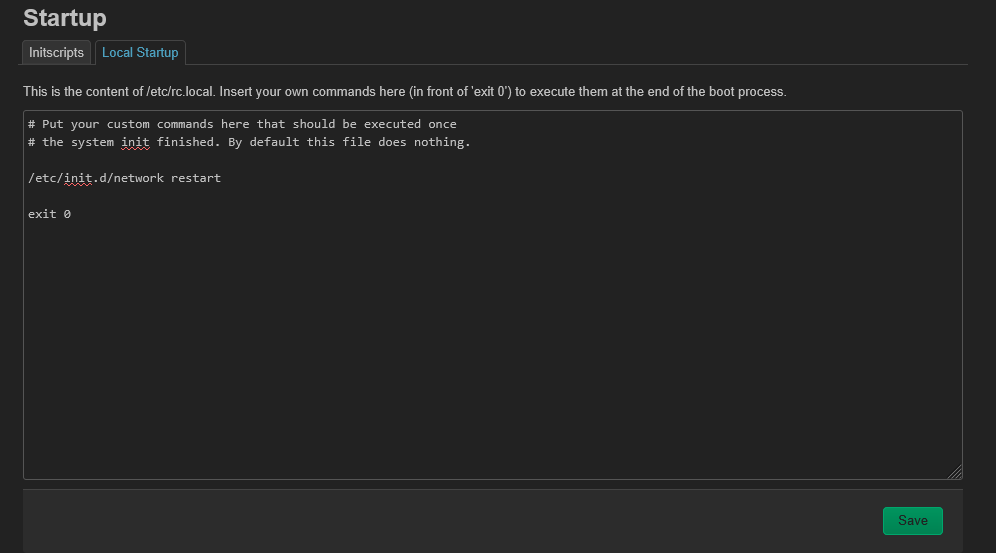
- This addition will be needed to start the wireless cards if the router restarts, as the wireless cards can’t start after booting, and this command will run after all system services have started.
Items used
- 2 Wireless card
- 2 M.2 Wifi Adapter
- 1 CPU fan
- 1 Pico PSU
- 1 samsung notebook ddr5 ram 8gb
- Powersupply adapter
- if you have soldering iron
- if you don’t have access to a 3d printer
Extra
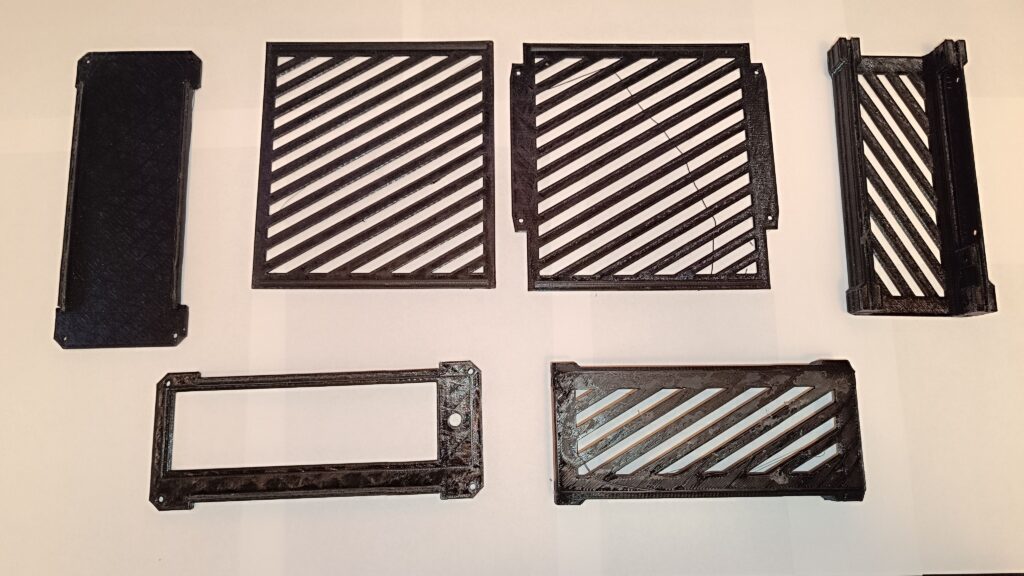
3D printed parts
Debugging option
Installing need packages for diagnosing hardware.
opkg install pciutils
wget https://git.kernel.org/pub/scm/linux/kernel/git/firmware/linux-firmware.git/tree/mediatek/WIFI_MT7922_patch_mcu_1_1_hdr.binwget https://git.kernel.org/pub/scm/linux/kernel/git/firmware/linux-firmware.git/tree/mediatek/WIFI_RAM_CODE_MT7922_1.binmv WIFI_* /lib/firmware/mediatek/